
Your portfolio pages
Colors and fonts, your header and footer, and every page your gallery shows.
Your homepage
The hero, your bio and the call to action — what a visitor sees before they reach your work.

Steps
Go to Pages in the sidebar and open the Home Page tab.
Set a Hero image or a Hero video.
If you set both, the video is used.
Add a Hero title and a Hero tagline (kicker).
Write your Bio.
Leave a blank line between paragraphs to split them.
Fill in the Call to action title, paragraph and button.
Click Save Homepage.
Tips
- A landscape hero image works better than a portrait one on desktop.
- Keep the hero title short — it is set in a large display face.
Colors and fonts
The Design tab sets the look of every page on your site: one palette and two typefaces.
Steps
Open Design from the sidebar.
It opens on the Brand tab, which has two sections — Colors and Typography.
Set your Colors.
Click a swatch to pick, or type a hex code.
Or start from one of the Suggested palettes and adjust from there.
Choose your Typography — one face for headings, one for body.
Each tile previews the real typeface.
Click Save Brand.
Tips
- The Live preview opens beside the fields and repaints as you pick, so you can judge a palette on a page rather than on swatches. Closed it? Preview in the save bar brings it back.
- Reset puts a color back to the Framery default without touching the others.
- Two typefaces is the limit on purpose. Restraint reads as design.
- Your logo, menu names and footer links are not here. They decide the shape of the site rather than its look, so they live under Pages.
Common problems
Text is hard to read on my background
Raise the contrast between the text and background colors, or start again from a suggested palette.
I cannot find the logo upload
It is under Pages → Header, with the menu names.
My colors look different on an artwork page
The palette paints the artwork pages and the room-scene surfaces too. Check one of those before you settle on a palette.
Your header and footer
The logo at the top, the name each page goes by in the menu, and the four links at the very bottom of every page.
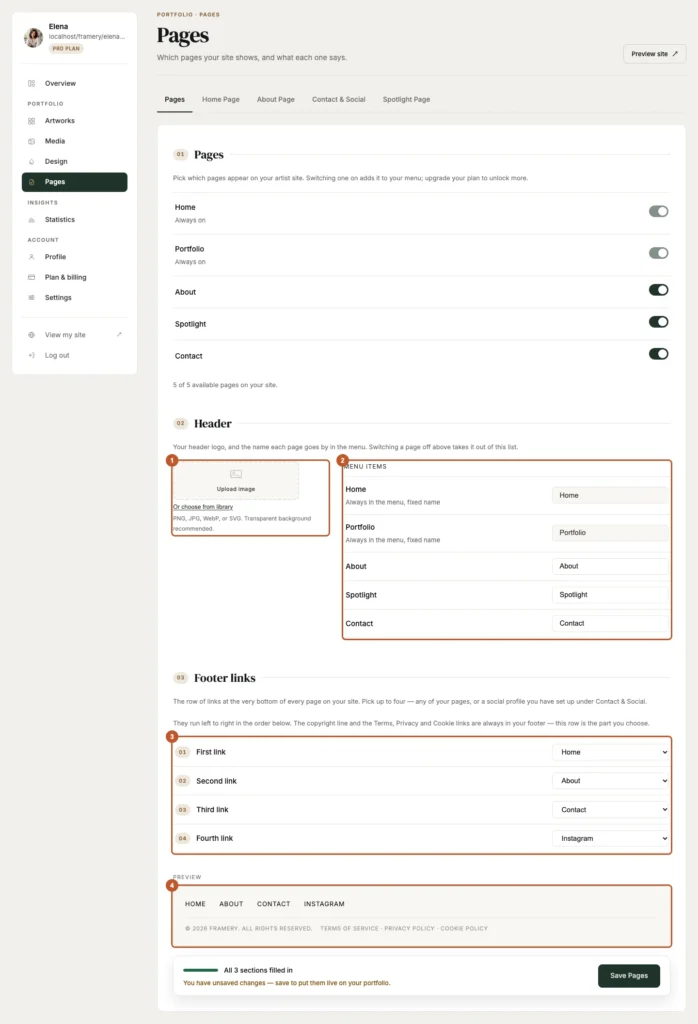
Steps
Open Pages from the sidebar.
Three sections, one Save: Pages, Header and Footer links.
Under Header, upload your header logo.
PNG, JPG, WebP or SVG. A transparent background is strongly recommended.
Edit the Menu items if the default names do not suit you.
This is the wording of your menu, not which pages exist. A page switched off above drops out of the list.
Under Footer links, choose up to four.
First link to Fourth link, running left to right — any of your pages, or a social profile you have set up under Contact & Social.
Click Save Pages.
Tips
- Home and Portfolio are always in the menu under fixed names, so there is nothing to type for them.
- A logo with a transparent background sits on your header color properly; a white-boxed JPG will not.
- Colours and typefaces are not here — they are under Design.
- The whole tab saves at once, page switches included. One Save Pages covers everything you changed.
Common problems
My logo has a white box around it
Export it as a PNG or SVG with a transparent background.
The footer only shows some of my links
There are four slots. Anything not assigned to a slot is not shown.
A social profile is not offered in the footer dropdowns
Add its URL under Pages → Contact & Social first, then come back.
My menu still shows the old name
Check you clicked Save Pages, then reload your gallery.
Your About page
A portrait, an introduction, what you believe, and a few shots from the studio.
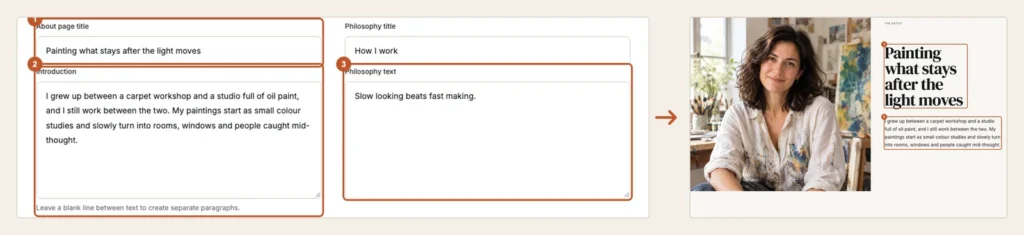
Steps
Open Pages from the sidebar and switch About on in the Pages section, then click Save Pages.
Skip this if it is already on.
Open the About Page tab.
Set the About page title.
Upload your portrait image and write the Introduction.
Portrait orientation suits the layout. Leave a blank line between paragraphs.
Add a Philosophy title and Philosophy text.
This is the “why” section — one idea, a few sentences.
Add Studio items: an image and a title for each.
Use + Add one more item for the next one.
Click Save About Page.
Tips
- The portrait here is separate from your profile photo in Profile — this one is the big image on the About page.
- Studio items work best as close-ups: tools, a corner of the bench, a work half finished.
- Three or four studio items is plenty. The page is about you, not an inventory.
Common problems
The About tab is not there
The page needs the Starter plan or above.
The tab is there but the page is not on my site
Switch it on in the Pages section of the same screen, then click Save Pages.
My paragraphs ran together
Leave a completely blank line between them, not just a line break.
Your Contact page
Where buyers reach you: studio email and phone, up to two addresses on a map, and your social links.
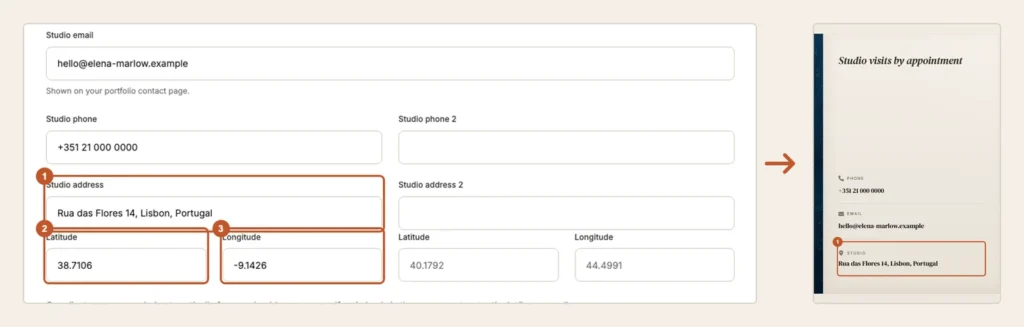
Steps
Open Pages from the sidebar and switch Contact on in the Pages section, then click Save Pages.
Skip this if it is already on.
Open the Contact & Social tab.
Upload a hero image and write the Hero kicker.
One short line over the image.
Fill in Studio contact: Studio email, Studio phone and Studio address.
A second address and phone are there if you work from two places.
Add your Social links — Instagram, Facebook, YouTube, WhatsApp.
Click Save Contact & Social.
Each address is turned into map coordinates as it saves.
Tips
- The studio email shown here is the one buyers use, and it does not have to be your account email.
- Social links you add here can also be pinned into your footer, from Footer links on the Pages tab.
- Leave the phone blank if you would rather not take calls — the page works fine without it.
Common problems
The Contact tab is missing
It needs the Starter plan or above.
The map shows the wrong country
The address was ambiguous. Enter the latitude and longitude manually.
My enquiry button goes somewhere else
An artwork with a Custom enquiry URL overrides the contact page for that piece only.
Your Spotlight page
A page built for one thing at a time: a show, a series, a commission — with video and sound if you want them.
Steps
Open Pages from the sidebar and switch Spotlight on in the Pages section, then click Save Pages.
Open the Spotlight Page tab.
Set the Spotlight page title and the Spotlight page header.
Upload a Hero video.
MP4 or WebM, under 30 MB. Add a Banner image too — it is shown when there is no video.
Optionally add Background audio.
MP3, WAV, OGG or M4A under 10 MB. It loops quietly behind the hero.
Write the Intro text.
Shown beside the hero. Blank lines split paragraphs.
Add Spotlight items — an image, a title and a description each.
Every item becomes its own section down the page.
Click Save Spotlight Page.
Tips
- Keep the hero video short and silent-friendly. Most visitors meet it with the sound off.
- Background audio is a strong choice — a room tone or a studio recording reads better than music with a beat.
- Four to six items makes a page with a rhythm. Twenty makes a list.
Common problems
The Spotlight tab is not there
It needs the Pro plan or above.
My video will not upload
Videos are capped at 30 MB. Compress it, or use the banner image instead.
The audio does not play
Browsers block sound until the visitor interacts with the page. That is expected, and not something to fix.
Page examples
Three shapes a Framery gallery takes, and which one to copy.
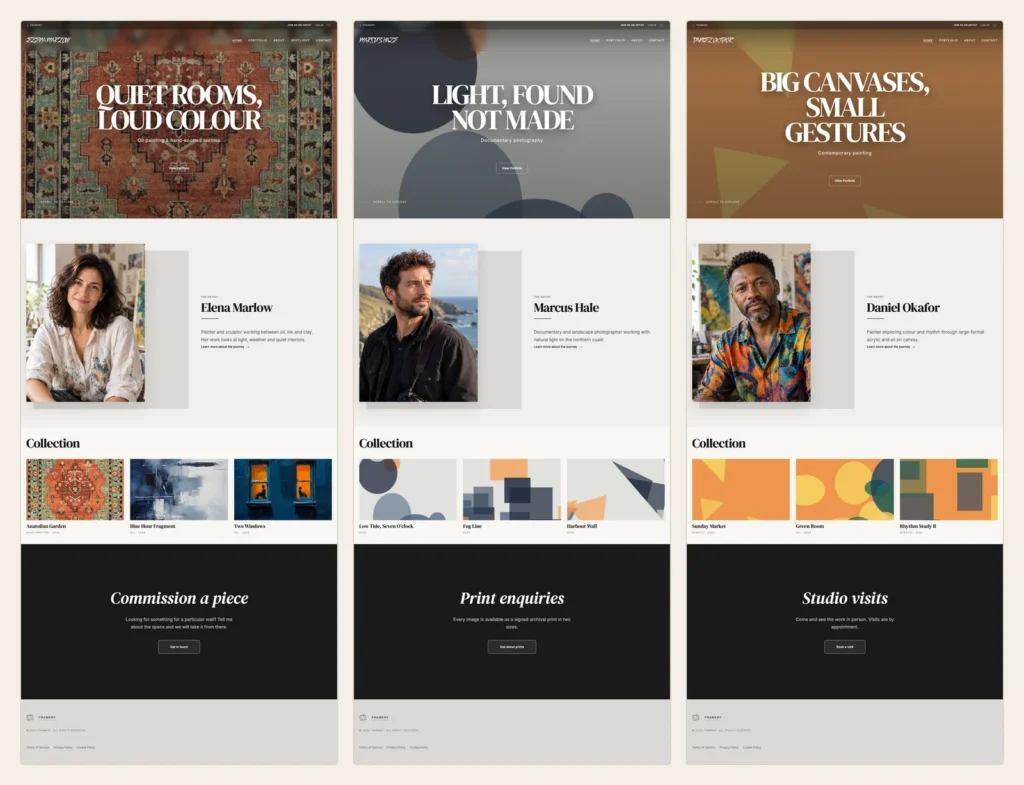
Nothing here is a template you install — every gallery is built from the same pages. What differs is how many you turn on and how much you put on each.
Three shapes
Homepage and the works, nothing else. Fast to finish, and enough to start selling. Works on Free.
Homepage, About and Contact. The usual shape: the work, the person, the way in. Starter and up.
Adds a Spotlight page for a current show or series. Pro and up.
Tips
- Browse the artists directory to see finished galleries — filter by discipline to find work like yours.
- Start with one page and add the others when you have something to put on them. An empty About page is worse than none.
- Pages are switched on and off under Pages, so the shape of your site is not a permanent decision.