
Plans and billing
Compare plans, upgrade, use codes, cancel or downgrade.
Compare plans
What each plan includes, and what changes when you move between them.
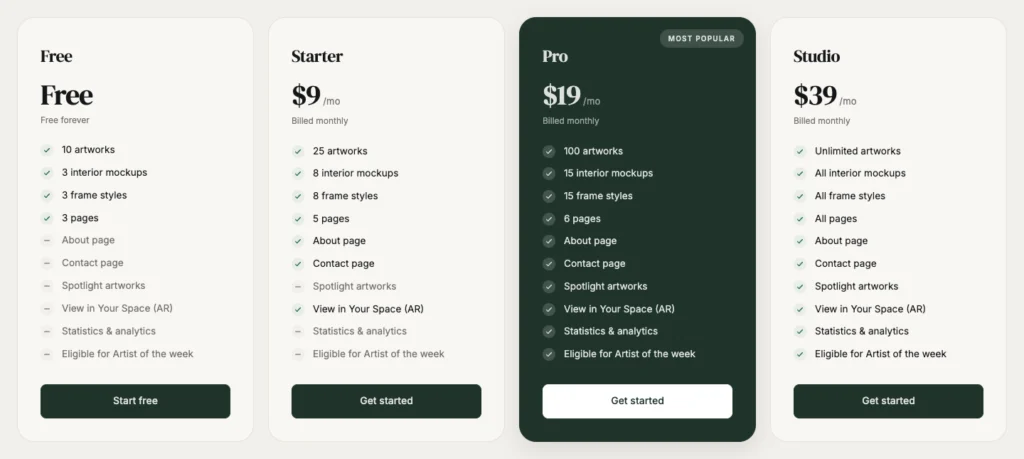
Every plan gives you a real gallery at your own address, with frames and room mockups. What changes as you move up is how many artworks you can publish, how many room scenes and frame styles visitors can try, and which extra pages you can add.
The live comparison is on the plans page, which always reflects the current limits and prices.
Tips
- The Free plan does not expire and is not a trial.
- Paying yearly costs less than paying monthly.
- If you have an early access code, enter it at checkout.
Common problems
What happens to my artworks if I downgrade?
Nothing is deleted. Anything over the new limit is hidden, and comes back when you upgrade again.
What happens if I cancel?
Your gallery stays online on the Free plan, at the same address.
Upgrade or change plan
Moving up takes one checkout, and the new limits apply as soon as it clears.
Steps
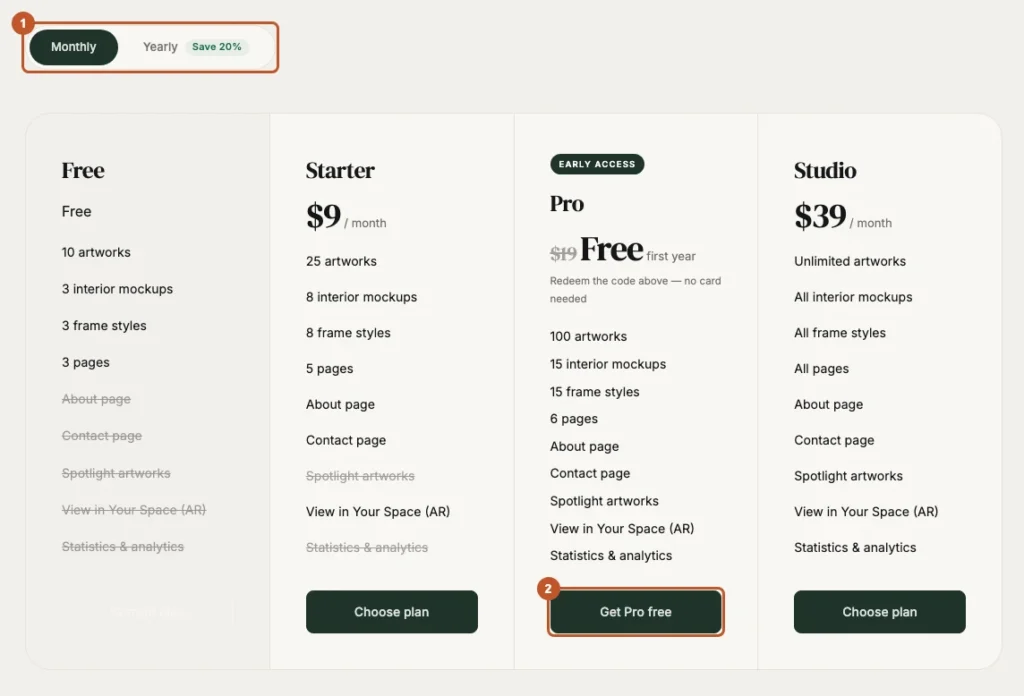
Open Plan & billing and click Upgrade.
It reads Change plan instead once you are on a paid plan.
Choose Monthly or Yearly at the top, then pick a plan.
Yearly carries a Save badge where it is offered.
Click Choose plan on the one you want.
On a paid plan already, the button reads Switch to this plan. A higher plan starts straight away; a lower one starts on your next billing date.
Pay on the checkout page.
Card payments and invoices are handled by Dodo Payments, our payment provider and merchant of record.
Wait for the page to refresh.
You land back on Plan & billing, where “Your new plan is being activated” becomes “Your new plan is active” within a few seconds.
Tips
- Annual billing, where it is offered for a plan, costs less than twelve monthly payments.
- Nothing on your gallery changes when you upgrade except what you are allowed to do — no re-uploading, no re-styling.
- Works that were hidden by a downgrade come back as soon as you upgrade again.
- Left checkout by mistake? You land back on the plans page. Pick the plan again, or use Finish upgrading on your dashboard.
- Nothing is charged until the checkout itself completes. Backing out of it costs you nothing.
Common problems
My plan still shows the old one
The confirmation arrives from the payment provider a moment after checkout. Reload Plan & billing; if it has not changed within a few minutes, contact support with the date and amount.
My code was refused
Early access codes are limited, and each one works once. The plans page says when they have all been claimed.
I want to pay yearly and only see monthly
Annual pricing is offered per plan. Where you do not see it, it is not available for that plan yet.
The plan buttons say “Checkout enabled once payments are live”
Payments are not switched on yet on this site. Nothing is wrong with your account.
My plan card says “Available from” a date
You are on a free early-access year. There is nothing to pay until its last 30 days, and that date is when checkout opens.
I never finished checkout after signing up
Your dashboard carries a banner with the plan you picked. Finish upgrading reopens checkout; Not now forgets it.
Cancel or downgrade
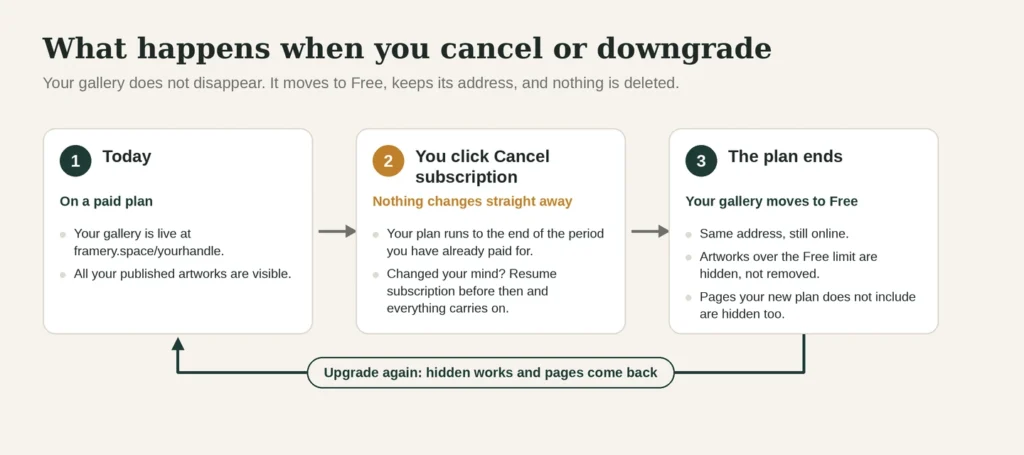
Your gallery does not disappear. It moves to Free, keeps its address, and nothing is deleted.
Steps
Open Plan & billing.
Click Cancel subscription, then confirm.
The dialog asks “Cancel your subscription?” — Keep subscription backs out. Nothing changes straight away either way.
Read the Cancellation scheduled notice.
It names the date your plan ends, which is the close of the period you have paid for.
Changed your mind before then? Click Resume subscription and confirm.
Everything carries on as if you had not cancelled, and you are charged again at the next renewal.
Tips
- Cancelling stops future charges. It is not a refund request — the refund window is 14 days from a charge, described on the refund policy page.
- Moving to a lower paid plan, or from yearly to monthly billing, is a plan change rather than a cancellation: use Change plan and pick it. It takes effect on your next billing date, which Plan & billing shows, and you keep your current plan until then. Moving all the way down to Free is the cancellation above — the Free card says Downgrade from Billing for exactly that reason.
- Before a downgrade, unpublish the pieces you would rather not have chosen for you. Otherwise which works stay visible is decided for you.
Common problems
Can I keep my address on Free?
Yes. framery.space/yourhandle stays yours.
Will my artworks be deleted?
No. Anything over the limit is hidden and restored on upgrade.
I need a refund
Email support within 14 days of the charge with your account email and the charge date.
Payment management is unavailable
That message means the payment provider could not be reached. Try again shortly, or contact support if you need a change made urgently.
Plan usage and your pages
How much of your plan you are using, which pages your site shows, and where to find each.
Steps
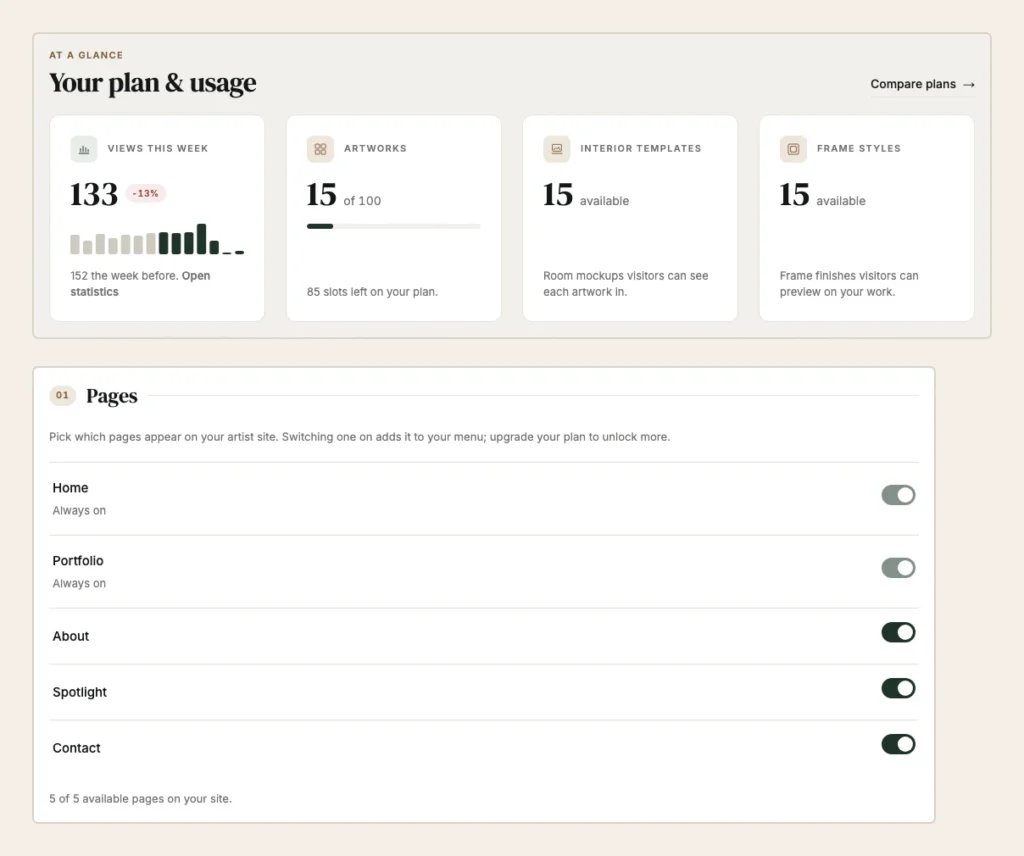
Check Your plan & usage on your Overview.
Artworks show how many you have used of your plan’s limit; room scenes and frame styles show how many are available.
Watch for the artworks bar turning amber.
That is the warning that you are close to the limit, with a link to upgrade beside it.
The same figures are listed under Usage & limits on Plan & billing.
To choose which pages your site shows, open Pages from the sidebar.
Its first section lists every page Framery can give you, and whether your plan includes it.
Flip a page’s switch, then click Save Pages.
A changed row reads Changed — not saved yet until you do. The tab bar updates straight away; your live site changes when you save.
Tips
- Pages marked Always on cannot be turned off — they are the backbone of a gallery.
- A page marked Upgrade to Pro to enable is not missing, only locked. Nothing you put on it is lost when a plan changes.
- Turning a page off hides it from your navigation without deleting anything you wrote on it.
- The line under the list counts what is on, for example “3 of 4 available pages on your site.”
Common problems
My artwork count looks wrong
Only published works count. Drafts do not use a slot.
A page I turned on is not in my menu
Check you clicked Save Pages, then reload your gallery. The menu names are in the same tab, under Header.
I am at my limit on everything
That is the moment to compare plans rather than prune.
I cannot find the Resources page
It was split up. Usage is on your Overview and on Plan & billing, and the page switches are under Pages. Old links go there automatically.