
Media library
Find, filter and clean up your images, videos and audio.
Your media library
Every file you have uploaded, grouped by where it is actually used.
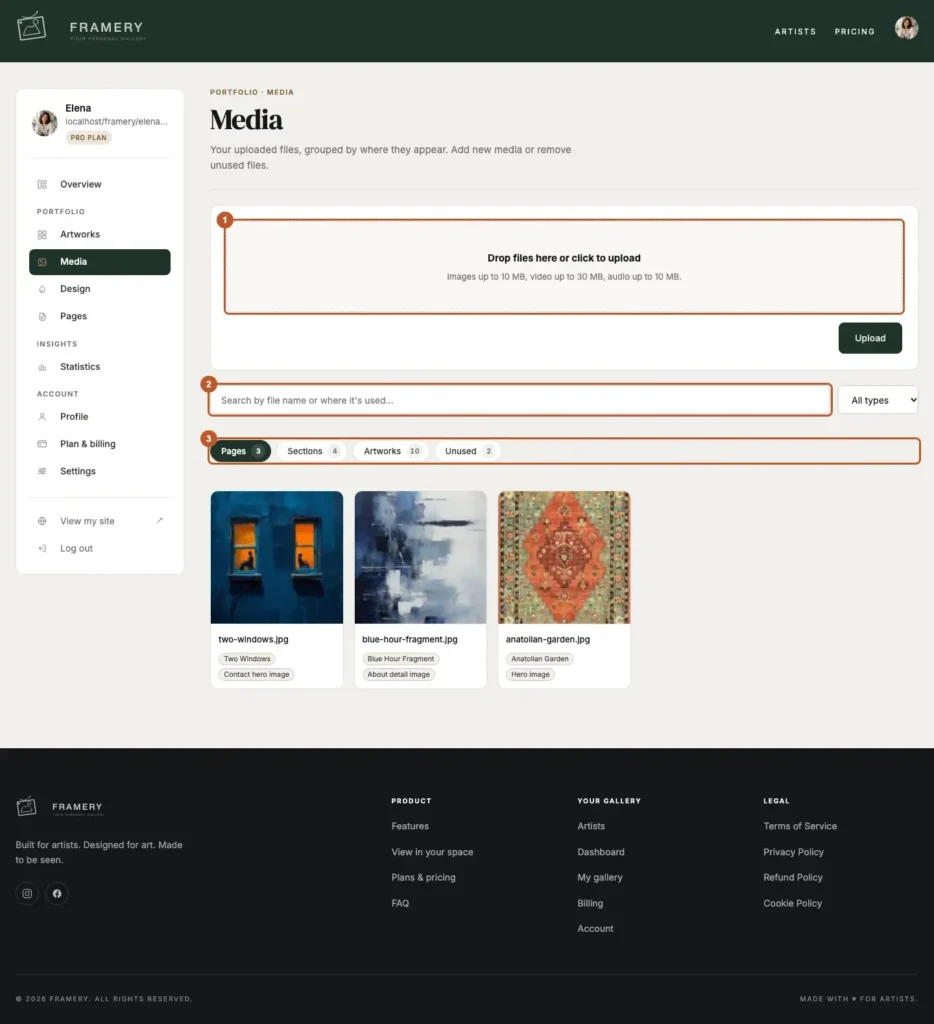
Steps
Open Media from the sidebar.
Upload with Drop files here or click to upload.
Images up to 10 MB, video up to 30 MB, audio up to 10 MB.
Use Media groups to narrow the view.
Pages, Sections, Artworks and Unused.
Search by file name, or by where the file is used, in Search media.
Narrow further with Filter by type.
All types, Images, Video or Audio.
The groups
Files placed on your homepage, About, Contact or Spotlight pages.
Files used inside a section of a page, such as a studio item.
Artwork images and their extra views.
Uploaded, but not shown anywhere on your site.
Tips
- The library is per gallery, not per page — one upload can be reused anywhere.
- Searching by where a file is used is the fast way to find the hero image you replaced last month.
- The Unused group is where a clear-out starts.
Common problems
My upload was skipped
The notice names the file and the reason — over the size limit, or a file type Framery does not take.
The file is there but not on my site
Uploading does not place a file. Choose it in the relevant field under Pages, or on an artwork.
I cannot find a file I know I uploaded
Clear the type filter and the group, then search part of the file name.
Clean up unused files
Old heroes, rejected crops and test uploads, removed in one pass — and nothing that is still in use.
Steps
Open Media and choose the Unused group.
Look through what is there.
These are files not shown anywhere on your site.
Delete a single file with Delete on it, or clear the lot with Delete all unused.
The button carries the count.
Confirm.
Deleting a file cannot be undone.
Tips
- “No unused media — every file is in use” means there is nothing to do. That is the goal state.
- Old artwork photos become unused the moment you replace them with a cut-out, so this is worth a look after an import.
- Keep your own copies. The library is what your site serves, not your archive.
Common problems
That file is still in use and cannot be deleted
Find where it is placed, swap or clear it there, then delete it from Unused.
I deleted the wrong file
It has to be uploaded again — deletion is permanent — and then re-placed wherever it was used.
Preparing video and audio
What formats Framery takes, how big a file can be, and how to get a long clip under the limit.
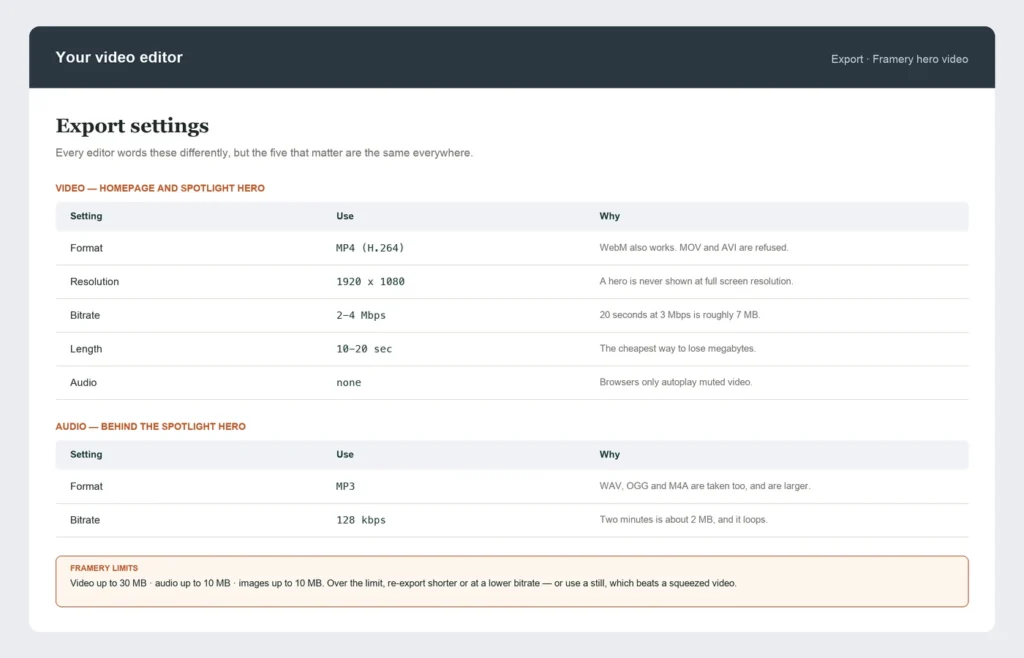
Steps
Cut the clip to what it needs to be.
Ten to twenty seconds is enough for a hero, and it is the cheapest way to lose megabytes.
Export at 1080p, not 4K.
A hero video is never shown at full screen resolution.
Aim for a bitrate around 2–4 Mbps in MP4 (H.264).
Twenty seconds at 3 Mbps is roughly 7 MB.
For audio, export MP3 at 128 kbps.
Two minutes is about 2 MB, and it loops, so it does not need to be long.
Upload from Media, or directly in the field under Pages that uses it.
Limits
MP4 or WebM, up to 30 MB. Used for the homepage hero and the Spotlight hero.
MP3, WAV, OGG or M4A, up to 10 MB. Loops behind the Spotlight hero.
JPG, PNG, WebP or SVG, up to 10 MB, resized to 2000px on the longest side.
Tips
- A hero video is decoration, not a film: no titles, no hard cuts, nothing that demands attention.
- Assume the sound is off. If the clip only works with audio, it is the wrong clip.
- If you cannot get a video under 30 MB, use a still image instead — a good photograph beats a compressed video.
Common problems
That upload was too large
Video is capped at 30 MB and audio at 10 MB. Re-export shorter or at a lower bitrate.
Unsupported file type
MOV, AVI and FLAC are not accepted. Convert to MP4 or MP3 first.
The video does not autoplay
Browsers only autoplay muted video, which is how Framery uses it. Sound has to be started by the visitor.