
Presenting your art
Interior mockups, frames and View in your space.
Interior mockups
Every artwork page can show the piece hanging in a furnished room, scaled to the size you entered.
Under See it in context on an artwork page, visitors get a photograph of a real room with your work on the wall. They can move through the scenes, change the wall color, and — where your plan allows it — try a frame at the same time.
You do not set any of this up. The scenes come with Framery; what decides whether they look convincing is the piece’s measurements and how clean its photo is.
Room scenes per plan
3 scenes.
8 scenes.
15 scenes.
Every scene Framery has.
Tips
- Scenes are grouped into room types — living room, dining room, bedroom, home office, nook and showcase — under Curated Spaces, with All Spaces showing everything at once.
- Visitors can try a different Wall color, including a custom one, without leaving the page.
- Sculptures and objects get floor and pedestal scenes instead of walls, and are never framed.
Common problems
The section is missing on a piece
A work with no usable measurements has nothing to scale against. Add its width and height in centimeters.
My work looks too big or too small in the room
The measurements are wrong. Check them in centimeters, and measure the art rather than the frame.
I want different rooms
Which scenes you see depends on your plan. Upgrading adds more; you cannot upload your own.
Frames
Visitors can try your piece in a range of mouldings, on the page and in the room scenes.
The frame picker sits on the artwork page above the stage. Choosing a frame changes the main image and every room scene at once, and No Frame puts the piece back to bare.
Frames are a preview for the visitor, not an order. What a buyer actually receives is what you set in Frame status on the artwork.
Frame styles per plan
3 styles.
8 styles.
15 styles.
Every style Framery has.
Tips
- Set Frame status to Framing available, With frame, No frame or Not applicable per piece so buyers know what they get.
- Not applicable hides the picker completely — the right choice for an unstretched canvas or a work on a panel.
- A 3D artwork never shows the picker, whatever its frame status.
Common problems
The frame picker does not appear
The piece is either marked Not applicable or ticked as a 3D artwork. Both hide it by design.
The frame looks too heavy for the work
That is the visitor’s choice to make — they can switch, or pick No Frame.
I only see three frames
Frame styles are part of your plan. Upgrade to offer more.
View in your space
On a phone, a visitor points the camera at their wall and sees your work there at its real size. No app, no sign-up.
View in your space sits in the See it in context section of every artwork page. On a phone or tablet it opens the camera: the visitor points at a wall and the piece appears on it, at the size you entered, with whatever frame they had selected.
On a computer the same button opens a photo tool instead — the visitor uploads a picture of their own wall, says how wide the wall is, and drags your work into place.
Tips
- It works in the phone’s own browser on both iPhone and Android. Nothing is installed.
- The frame the visitor has chosen comes with them into AR.
- Sculptures are placed On the floor rather than on a wall.
- The photo version has a Download button, so a visitor can keep the composite and think about it.
Common problems
The button is not on my artwork pages
It needs the Starter plan or above, and the piece needs real measurements. Both are required.
It opens a photo upload instead of the camera
That is the desktop behavior. Open the page on a phone for AR.
The size looks wrong in the room
In the photo version, the Wall width (cm) figure is what everything is scaled against — an estimate there shows up as a wrong-looking artwork.
AR will not start on an old phone
Older devices fall back to the photo tool. The Upload a photo instead link is always there.
Get the best mockups
Three things decide whether the room scenes look like a photograph or like a collage.
Steps
Get the measurements right, in centimeters.
Everything else is scaled from them, so a typo here cannot be rescued later.
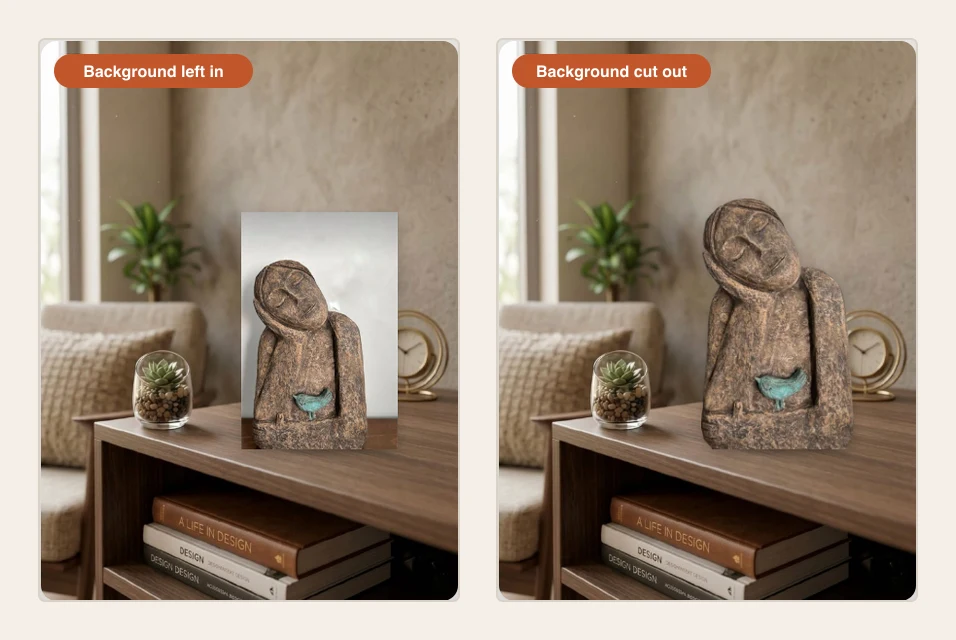
Cut the background out.
A photo still carrying its wall or easel looks pasted onto the room.
Upload a sharp file, 1600px or more on the longest side.
A soft photo stays soft when it is scaled up onto a wall.
Check one piece on a phone before you do the rest.
Two minutes here saves redoing a whole gallery.
Tips
- Straighten the photo before you upload it — a slightly tilted rectangle reads as a mistake once it is hanging on a wall.
- Tick 3D artwork for objects so they get the floor scenes and the cut-out shadow.
- Crop tight to the edge of the work. Framery frames and shadows the file exactly as it arrives.