
Account and help
Logging in, your profile, email and password, fixing problems, contacting us.
Logging in, and resetting a password
Where to sign in, what to do when the password is gone, and what the reset link will and will not do.
Steps
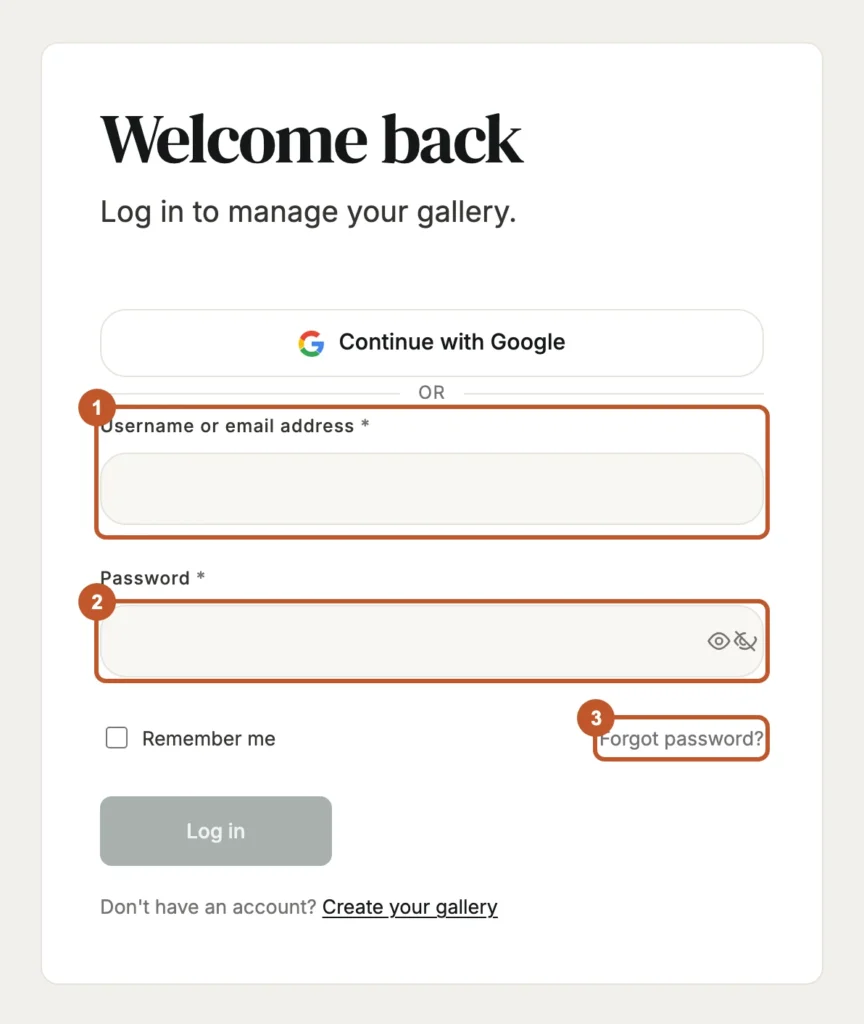
Go to Log in from the top of any page.
Or Continue with Google, if that is how you signed up.
Enter your Username or email address and Password.
Your username is your gallery handle; either one gets you in.
Tick Remember me to stay signed in on this device, and use Show password to check what you typed.
Click Log in.
You land on your dashboard, or back on whatever page you were trying to reach.
Lost your password
The link under the password field on the login form. You do not need to be signed in.
Enter the email or username on your account. The reply is the same either way — it never says whether an account exists.
The emailed link opens a form. Type the new password twice, at least 8 characters.
You are signed in immediately and land on your dashboard.
Tips
- A reset link lasts 24 hours and works once. Ask for a fresh one rather than reopening an old email.
- Saving a new password signs out every other session. That is the point of it, and it is how you lock someone else out.
- Changing your password does not touch your handle, your gallery address or your artworks.
- Already signed in and just want a new password? Use Settings instead — it asks for your current one.
Common problems
No account found with that username or email address
Check for a typo, then try the other one. Your username is your handle, which is often not your email address.
Too many reset requests
Five an hour from one connection. Wait an hour and try again.
The reset link has expired or already been used
Ask for a new one with Forgot password? and open it straight away.
I signed up with Google and have no password
There is nothing to reset — use Continue with Google. If you would rather also have a password, set one with Forgot password?.
Google sign-in failed, or was cancelled
Start again from the login page. If it keeps failing, log in with your email and password instead and tell us.
Your profile
Your name, your photo, and the discipline you are listed under.
Steps
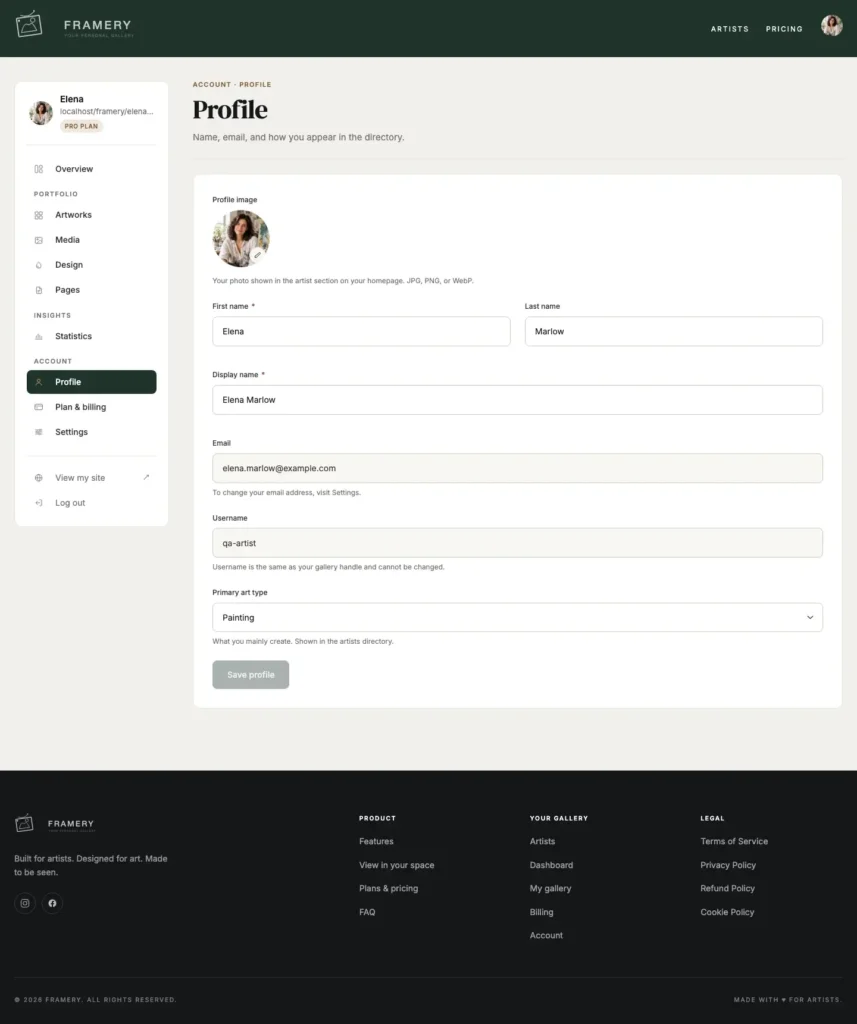
Open Profile from the sidebar.
Fill in First name, Last name and Display name.
The display name is what appears on your portfolio.
Upload a Profile image.
Shown in the artist section of your homepage and in the artists directory.
Choose your Primary art type.
What you mainly create. It decides where you sit in the directory.
Click Save profile.
Tips
- Your email address is changed under Settings, not here.
- The profile photo here is separate from the portrait on your About page — that one is set under Pages → About Page.
- Your bio lives under Pages → Home Page, which is the most common thing artists look for on this screen and do not find.
Change email or password
Both live on the Settings screen, and a new email address has to be confirmed before it takes effect.
Steps
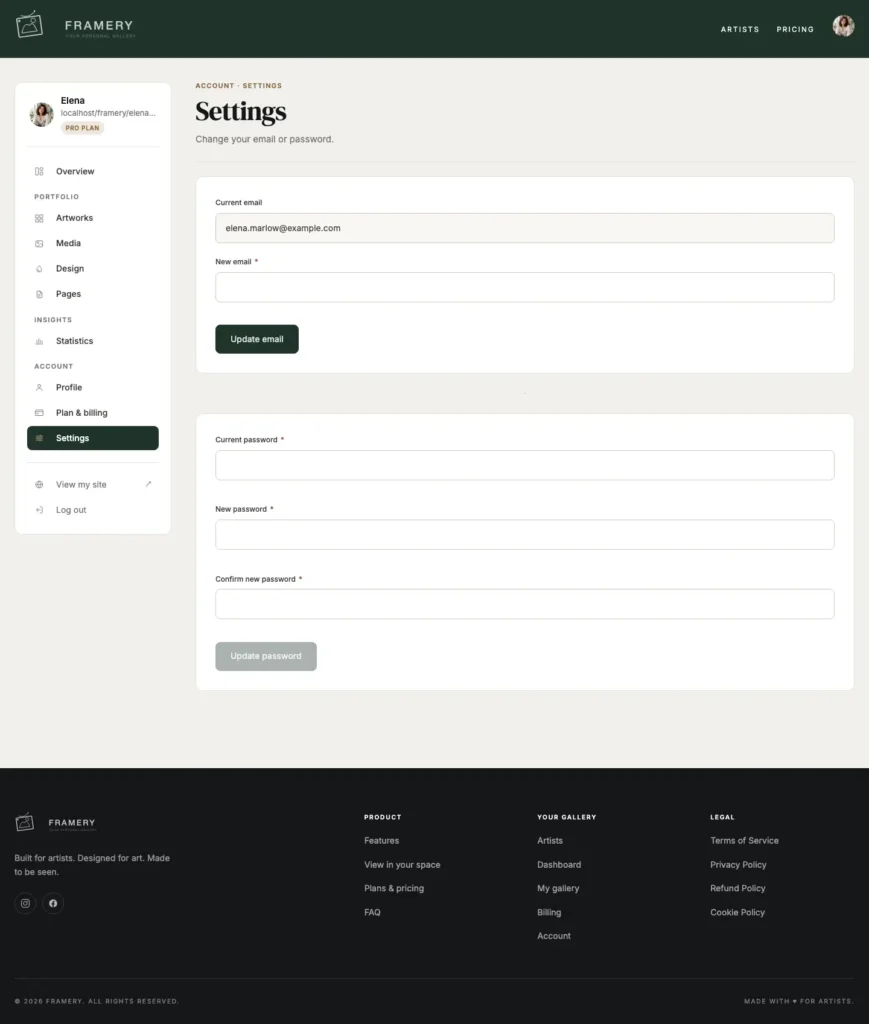
Open Settings from the sidebar.
To change your address, type the New email and your Current password, then click Update email.
Open the message sent to the new address and click the link.
Until you do, Settings shows “Pending confirmation” and the old address still works.
To change your password, enter your Current password, then the New password twice, and click Update password.
Tips
- The confirmation link goes to the new address on purpose — it proves the address is yours and reaches you.
- Forgotten your password? Use the reset link on the login page; it does not need you to be signed in.
- Changing your email does not change your username, your handle or your gallery address.
Common problems
The confirmation email did not arrive
Check the spam folder of the new address, then submit the change again to send a fresh link.
My current password is rejected
Reset it from the login page first, then change the email.
I am locked out of the old address
Contact support from an address you do control, and say which gallery it is.
Troubleshooting
The messages artists hit most often, and what each one wants you to do.
Tips
- Reload the page before anything else. A stale form is behind a surprising share of odd behavior.
- Note the exact wording of a message before you change anything — it is the fastest thing to search for, and the most useful thing to send us.
- If a change did not seem to save, check you clicked the save button for that section. Each tab saves on its own.
Common problems
That upload was too large
Images are capped at 10 MB, video at 30 MB, audio at 10 MB, and a whole import batch at 100 MB. Re-export the file smaller, or split the batch.
Unsupported file type
Images have to be JPG, PNG, WebP or SVG; video MP4 or WebM; audio MP3, WAV, OGG or M4A. Convert the file and try again.
I have reached my artwork limit
Only published works count. Unpublish a piece to free a slot, or upgrade to raise the limit.
AI analysis failed for one image
The rest of the batch carries on. Fill that piece in by hand, or run it again on its own. AI Import also needs the Pro plan or above.
A map pin is in the wrong place
Coordinates are looked up from the address. Enter the latitude and longitude by hand on the Contact & Social tab and save again.
Visitors get sent to framery.space instead of my gallery
Your email address is not verified yet, so the public is redirected away. Use Resend verification email on the dashboard banner and click the link.
A file will not delete
Files in use are protected. Remove the file from the page or artwork using it, then delete it from the Unused group.
View in your space is missing
It needs the Starter plan or above, and the piece needs a real width and height.
The frame picker is missing
The piece is marked Not applicable for framing, or ticked as a 3D artwork. Both hide it deliberately.
My work looks tiny in the room scenes
The dimensions are wrong. Check them in centimeters, and measure the artwork rather than its frame.
Contact support
A real person reads it. What you put in the email decides how fast it gets sorted.
Use the Email support button at the foot of any page in this help center — it opens your mail app already addressed to us.
Steps
Say what you were trying to do, in one sentence.
Include your gallery link.
framery.space followed by your handle. It tells us which account, plan and settings to look at.
Paste the exact message you saw, if there was one.
Attach a screenshot.
One picture of the screen usually replaces three emails.
Name the device and browser if it only happens in one place.
For example “iPhone, Safari”.
Tips
- Billing questions: include the date and amount of the charge. Refunds and invoices are handled by Dodo Payments, so the charge date is what we match on.
- One subject per email. Two problems in one thread is how one of them gets forgotten.
- Live chat is not open yet, so email is the way to reach us — there is no queue to sit in.